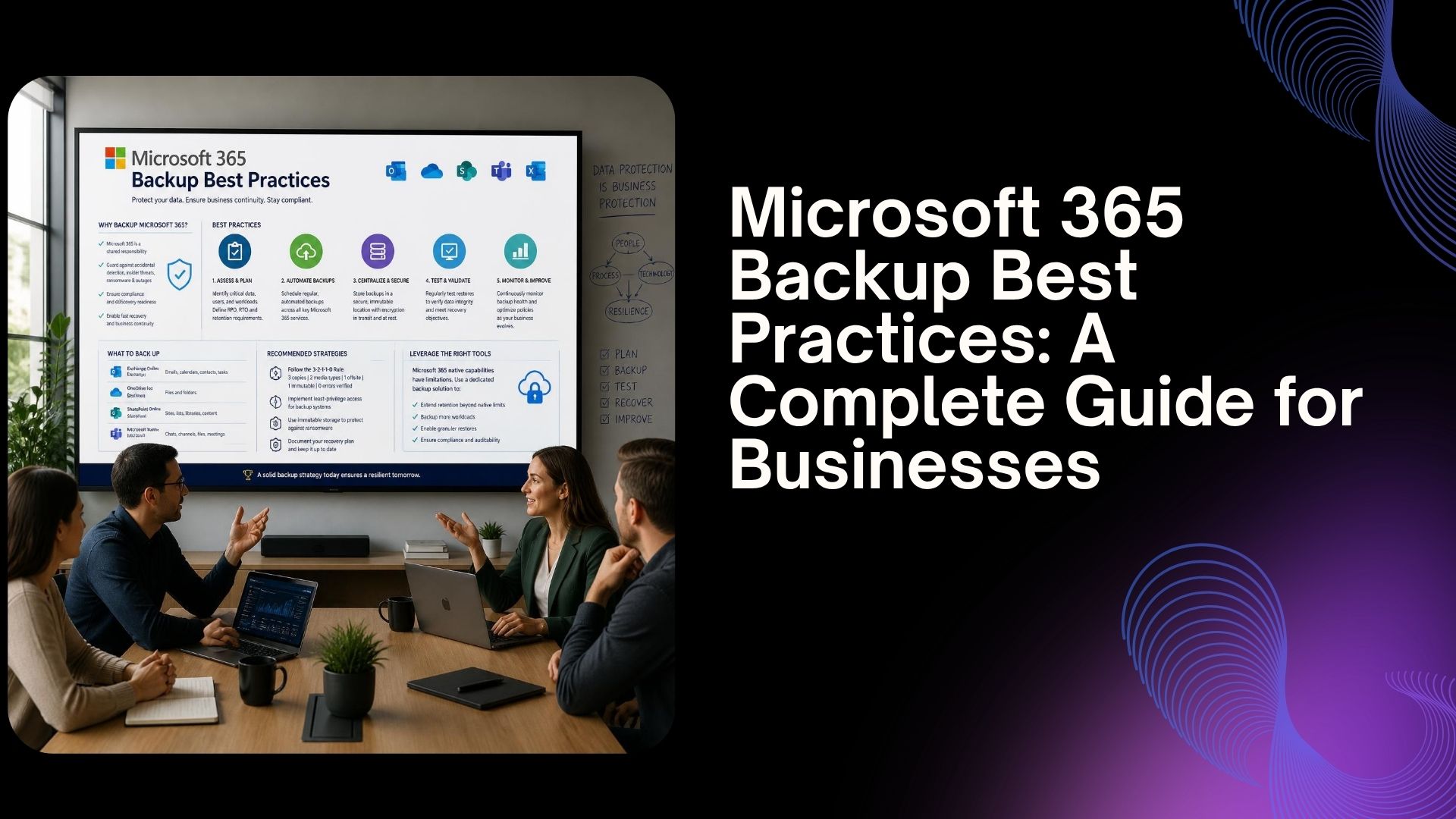
Microsoft 365 Backup Best Practices: A Complete Guide for Businesses
Microsoft 365 has become essential for modern businesses. Teams use Exchange Online, SharePoint, OneDrive, and Microsoft Teams to communicate, collaborate, and store critical business information.
But having your data in Microsoft 365 doesn't automatically mean you have a complete backup strategy.
Accidental deletion, malicious activity, ransomware, compromised accounts, and data corruption can all affect business information. This is why organizations need a well-planned approach to Microsoft 365 back up for best practices.
A strong backup strategy should do more than simply create copies of data. It should help your organization recover the right information quickly, protect backups from unauthorized access, and minimize business disruption.
In this guide, we'll explore practical Microsoft 365 backup best practices businesses can use to strengthen data protection and recovery.
Why Is Microsoft 365 Backup Important?
Microsoft 365 provides several native capabilities that help protect data, including retention, versioning, recycling bins, and other recovery mechanisms. However, these capabilities serve different purposes and should not automatically be treated as a complete backup strategy.
For example, an employee might accidentally delete an important file. A malicious user could modify SharePoint content. An attacker could compromise an account and intentionally delete or encrypt business information.
A backup strategy provides an additional layer focused specifically on recovering business data after data loss or security incidents.
Microsoft's own guidance recommends regular backups, recovery planning, protection against deliberate deletion or encryption, and regular recovery exercises.
Microsoft 365 Backup vs. Data Retention: What's the Difference?
One of the most common mistakes businesses make is treating retention policies as a replacement for backup.
They are not exactly the same.
Retention is primarily designed to help organizations preserve information according to business, legal, or compliance requirements.
Backup, on the other hand, is designed to recover data after events such as accidental deletion, corruption, malicious changes, or ransomware.
Think of it this way:
Retention = keeping information for a defined requirement.
Backup = creating a recovery path when something goes wrong.
A resilient Microsoft 365 data protection strategy may need both.
7 Microsoft 365 Backup Best Practices for Businesses
1. Identify Your Most Critical Microsoft 365 Data
You don't need to treat every piece of information exactly the same way.
Start by identifying your business-critical workloads and data.
These may include:
-
Executive and financial emails
-
Customer documents
-
SharePoint sites
-
OneDrive business files
-
Project documentation
-
Contracts and legal records
-
Important Teams-related business content
Create a simple classification such as critical, important, and low priority.
This helps your IT team determine what should be protected first and what needs the fastest recovery.
2. Create a Regular and Automated Backup Schedule
Manual backups are easy to forget and difficult to manage consistently.
Automation helps ensure that important Microsoft 365 data is backed up according to a defined policy.
Your backup schedule should be based on how frequently your data changes and how much information your business can afford to lose.
For example, a business handling customer transaction every day may require more frequent protection than an organization whose data changes only occasionally.
The objective is simple:
Don't wait for a data-loss incident to discover that your last backup was too old.
Microsoft recommends automatically backing up critical systems on a regular basis as part of ransomware preparedness.
3. Protect Backups from Ransomware and Unauthorized Changes
A backup is only useful if attackers cannot easily destroy it.
Modern ransomware campaigns can target not only production data but also the systems and resources organizations depend on for recovery. Microsoft specifically recommends protecting backups against deliberate erasure and encryption.
Businesses should therefore consider controls such as:
-
Strong administrator authentication
-
MFA for privileged accounts
-
Restricted backup administration
-
Immutable or protected backup storage where appropriate
-
Separate administrative access
-
Monitoring for suspicious backup activity
The goal is to prevent an attacker who compromises a user or administrator account from immediately compromising your recovery environment as well.
4. Follow the 3-2-1 Backup Principle Where Appropriate
The traditional 3-2-1 backup strategy remains a useful way to think about resilience:
- 3 copies of important data
- 2 different storage types
- 1 copy stored separately or off-site
The exact implementation will depend on your Microsoft 365 architecture, business requirements, compliance obligations, and backup platform.
The important principle is avoiding a situation where every copy of your data can be affected by the same incident.
Microsoft also recommends isolated, offline, or immutable backup approaches for stronger ransomware resilience.
5. Don't Forget Identity and Administrator Accounts
Data protection isn't only about files.
Your Microsoft 365 environment depends heavily on identities and administrative access.
If an attacker compromises a privileged account, they may be able to access sensitive resources or interfere with recovery operations.
That's why organizations should:
-
Enable MFA for administrator accounts
-
Apply least-privilege access
-
Review privileged accounts regularly
-
Remove unnecessary permissions
-
Monitor suspicious authentication activity
-
Separate backup administration where practical
Microsoft recommends MFA for administrative accounts as part of stronger protection against ransomware and destructive attacks.
6. Test Your Microsoft 365 Backups Regularly
This is one of the most overlooked Microsoft 365 backup best practices.
A backup that has never been tested is an assumption, not a recovery strategy.
Imagine discovering during a major incident that:
-
A required mailbox wasn't protected
-
The backup retention period was insufficient
-
Restoration takes much longer than expected
-
An administrator doesn't know the recovery procedure
-
The recovered data doesn't meet business requirements
Regular recovery testing helps identify these problems before a real incident.
Test different scenarios, such as accidental deletion, ransomware-related data loss, compromised accounts, and recovery of business-critical information.
Microsoft recommends regularly exercising business continuity and disaster recovery plans and validating that backups can support recovery.
7. Define RPO and RTO Before an Incident
Two important concepts should be part of your backup strategy:
Recovery Point Objective (RPO):
How much recent data can your business afford to lose?
Recovery Time Objective (RTO):
How quickly does the business need to restore access?
For example, if your business cannot afford to lose more than four hours of work, your backup approach must support an appropriate recovery point.
If a critical department needs access to data within two hours of an incident, your recovery process must be designed around that requirement.
Without defined RPO and RTO targets, it's difficult to determine whether your backup strategy actually meets business needs.
What Microsoft 365 Data Should You Back Up?
Your Microsoft 365 backup strategy should be aligned with the workloads your organization actually uses.
Depending on your environment, this can include:
Exchange Online
Email can contain contracts, customer communication, financial information, approvals, and other business records.
SharePoint
SharePoint frequently acts as a central document repository for teams and departments.
OneDrive
Employees may store important working documents and business files in OneDrive.
Microsoft Teams
Teams support collaboration, conversations, meetings, and file sharing. Your organization should understand which Teams-related information is critical and how it is protected within your overall data protection strategy.
Microsoft 365 Backup currently provides backup capabilities for SharePoint sites, OneDrive accounts, and Exchange mailboxes, with features designed to support rapid recovery.
How Does Microsoft 365 Backup Help with Ransomware?
Ransomware changes the way organizations should think about backups.
The question isn't simply:
"Do we have a backup?"
It should be:
"Can we recover clean business data after an attack?"
Attackers may attempt to encrypt, delete, or manipulate information and can also target backup and recovery resources. Microsoft recommends using protected or isolated backup copies and validating backups as part of ransomware preparedness.
A strong recovery strategy therefore combines:
Identity protection + threat detection + secure backups + recovery testing
This layered approach can significantly improve an organization's resilience.
A Practical Microsoft 365 Backup Checklist
Before considering your strategy complete, ask:
-
Have we identified our critical Microsoft 365 data?
-
Are important Exchange, SharePoint, and OneDrive workloads protected?
-
Do we understand what data needs faster recovery?
-
Is MFA enabled by administrators?
-
Are backup permissions restricted?
-
Can compromised accounts modify or delete backups?
Recovery
-
Do we have defined RPO and RTO targets?
-
Have we had recovery recently?
-
Do employees know who is responsible for recovery?
Resilience
-
Are backups protected from ransomware?
-
Do we have isolated or immutable protection where appropriate?
-
Are backup logs and administrative actions monitored?
If several answers are "no," your organization may have an opportunity to strengthen its Microsoft 365 data protection strategy.
Common Microsoft 365 Backup Mistakes to Avoid
Even organizations with backup tools can make strategic mistakes.
Relying Only on the Recycle Bin
A recycle bin is useful for recovering certain deleted items, but it shouldn't be considered your complete business continuity strategy.
Assuming Microsoft 365 Means Zero Data Loss
Cloud services provide significant resilience, but organizations still need to understand their own responsibilities for data protection, retention, security, and recovery.
Never Testing Restores
A successful backup job doesn't necessarily mean your business can recover quickly.
Giving Too Many People Backup Permissions
Excessive administrative access increases the potential impact of compromised credentials.
Ignoring Recovery Time
Backing up data is only half the equation. Your organization also needs a realistic plan for restoring operations.
Building a More Resilient Microsoft 365 Environment
The best Microsoft 365 backup strategy combines technology, security, people, and processes.
Start with the data that matters most. Define how much data loss is acceptable. Determine how quickly critical workloads must be returned. Protect backup copies from unauthorized modifications. Then test the entire recovery process.
For growing organizations, this approach can transform backup from a simple IT task into an important part of business resilience.
Microsoft's current Microsoft 365 Backup offering is designed around rapid recovery and includes enhanced administrative controls and recovery capabilities for supported Microsoft 365 workloads.
How Dhanyaayai Can Help
Managing Microsoft 365 data protection requires more than simply enabling a backup feature.
At Dhanyaayai, we help organizations strengthen their data protection and resilience strategies by assessing their environment, identifying critical workloads, improving backup and recovery processes, and aligning protection with business requirements.
Whether your priority is ransomware resilience, cloud data protection, backup modernization, or faster recovery, the right strategy can help reduce downtime and protect critical business information.
Conclusion
Microsoft 365 has transformed how businesses work but protecting business data requires a proactive strategy.
The most important Microsoft 365 backup best practices include identifying critical data, automating backups, protecting backup copies, securing administrator access, defining RPO and RTO, and regularly testing recovery.
Don't wait for a deleted file, compromised account, or ransomware incident to reveal weaknesses in your recovery strategy.
The best time to test your backup is before you need it.
Frequently Asked Questions
Is Microsoft 365 automatically backed up?
Microsoft 365 includes several native data protection and recovery capabilities, but organizations should evaluate whether these meet their specific backup, recovery, compliance, and business continuity requirements.
What is the best backup strategy for Microsoft 365?
A strong strategy combines regular automated protection, secure access controls, protected backup copies, appropriate retention, defined RPO/RTO targets, and regular recovery testing.
How often should Microsoft 365 backups be tested?
The frequency should depend on business risk and recovery requirements. Critical environments should test recovery regularly rather than waiting for an actual incident.
Can Microsoft 365 backups help with ransomware recovery?
Yes. A properly designed backup and recovery strategy can provide recovery options after malicious deletion, encryption, or other destructive incidents. However, backups should be protected against unauthorized modification or deletion.
What Microsoft 365 workloads can be backed up?
Microsoft 365 Backup supports supported workloads including Exchange mailboxes, SharePoint sites, and OneDrive accounts. Microsoft's capabilities and supported scenarios can evolve, so organizations should verify current service documentation when designing their architecture.